Enabling the Acrobat Reader PDF Form Capability
To enable the Acrobat Reader PDF Form capability in Real-Time Designer:
| 1. | In Real-Time Designer, select the Project tab. |
| 2. | Under the References section, add a new reference to the Direct.AcrobatReader.Library assembly by clicking New Reference on the ribbon. |

The AcrobatReader Support library is now enabled in Real-Time Designer. For details, see Acrobat Reader Support Library Functionality.

Acrobat Reader Support Library Functionality
You can view the available functions of the Office Library in Real-Time Designer.
To view the Acrobat Reader Support library functionality:
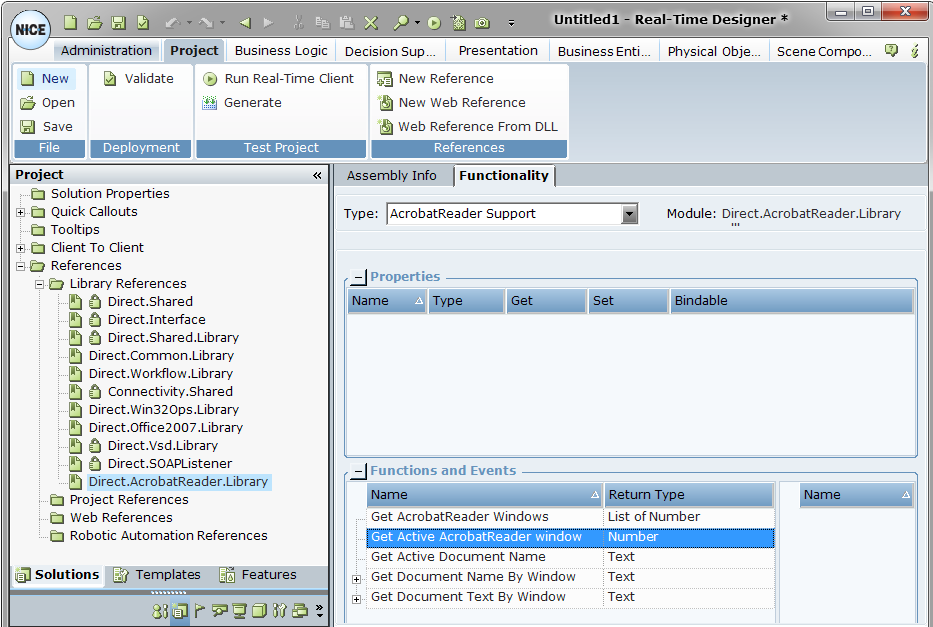
| 1. | Select the Project tab, and then expand the Library References node under the References section. |
| 2. | Select the Direct.AcrobatReader.Library in the tree. |
| 3. | The Assembly Info tab is opened by default with the information about the library: |
| 4. | Select the Functionality tab. |
From the Type drop-down list, select AcrobatReader Support or PDF Functions. The functions that work with PDF forms are listed in the Functions and Events pane.
AcrobatReader Support
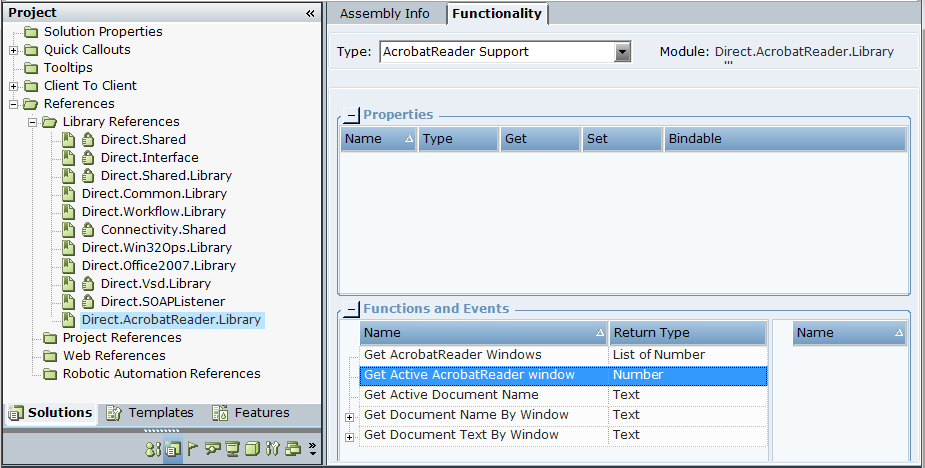
Get AcrobatReader Windows: Returns the numbers of Acrobat Reader windows.
Get Active AcrobatReader window: Gets the number of an active Acrobat Reader window.
Get Active Document Name: Returns the name of an active PDF document.
Get Document Name By Window: Returns the name of the PDF form by a given number of an Acrobat Reader window:

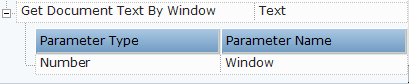
Get Document Text By Window: Returns text from a PDF form by the given number of an Acrobat Reader window:
PDF Functions
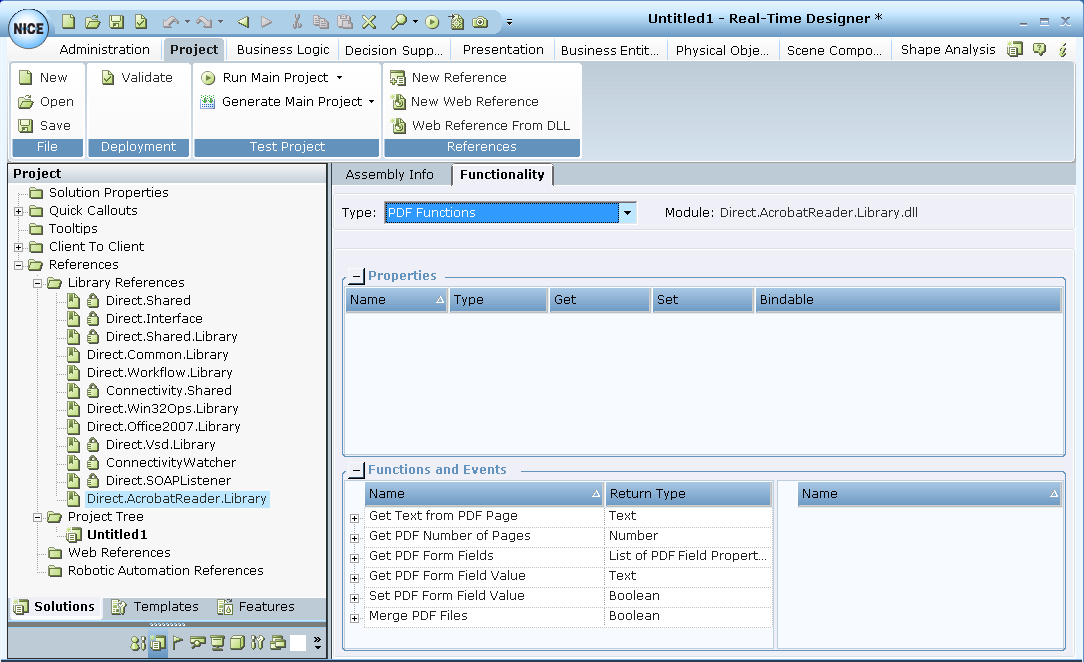
Get Text from PDF Page: Gets all the text from the specified PDF page. Use the Path and File Name parameters to locate the PDF file.
Get PDF Number of Pages: Gets the number of pages in the PDF file. Use the Path and File Name parameters to locate the PDF file.
Get PDF Form Fields: Gets a list of properties from the PDF form. Use the Path and File Name parameters to locate the PDF file.
Get PDF Form Field Value: Gets a field value from the PDF form. Use the Path and File Name parameters to locate the PDF file, and the Field parameter to indicate the field property (name).
Set PDF Form Field Value: Adds a value to a field in the PDF form. Use the Path and File Name parameters to locate the PDF file, and the Field parameter to indicate the field property (name). Use the Value parameter for the property value.
Merge PDF Files: Merges PDF files into one file. Use the Input Files Full Paths parameter to list the paths to the PDF documents to merge, and the Output File Full Paths parameter for the path to the merged file. Add Page Numbering returns the page number.
Using the functions above in the Advanced Process Automation, you can get the content from a PDF document. For an example, see Acrobat Reader Support Library Example.
Acrobat Reader Support Library Example
The following example walks you through the process of using the functions of the Acrobat Reader Support library, which returns all of the data from the PDF document, such as texts, Boolean checkbox selections (yes/no), and drop-down lists.
Acrobat Reader Support library does not read values from a single field in the Acrobat Reader PDF form.
This procedure can be used for any Acrobat Reader PDF form. This example describes how a specific callout is displayed with text of the active PDF document by Real-Time Client each time you click the link in the callout.
You do not need to capture screen elements in the PDF document in order to use the Acrobat Reader Support library.
To obtain the PDF form data:
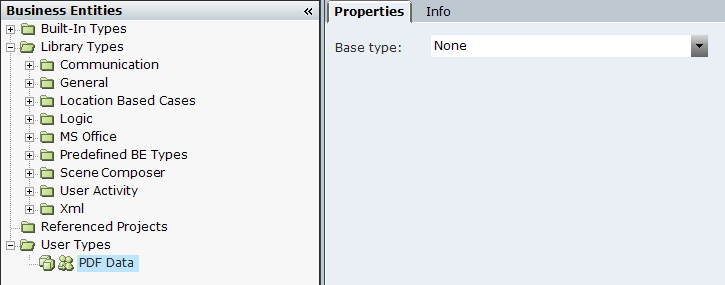
| 1. | Create a New Business Entities type and name it; for example, PDF Data. |
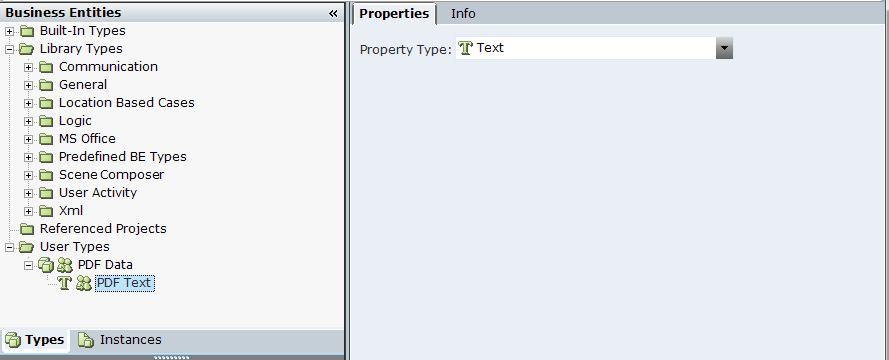
| 2. | Add a New Property of Text type to the PDF Data business entity type and assign the property a name, for example, PDF Text. In this example, the returned content of a PDF document is assigned to this business entity property: |
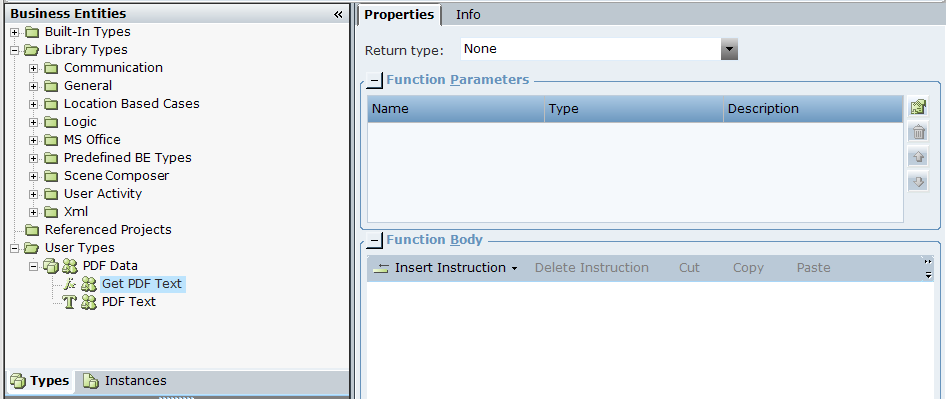
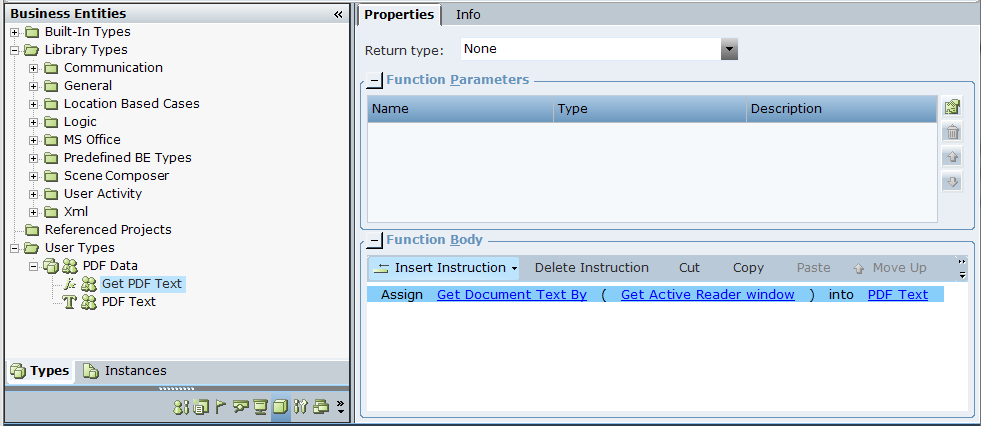
| 3. | Add a New Function to the PDF Data business entity type. Give the function a name, for example, Get PDF Text: |
| 4. | In the Function Body pane, click Insert Instruction and select Assignment: |
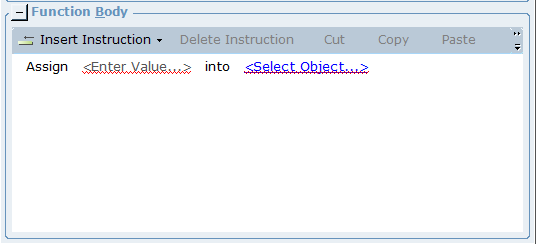
| 5. | Click the <Select Object…> link: |
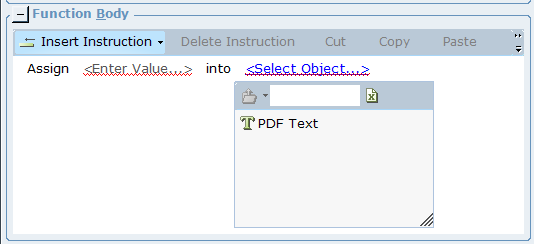
| 6. | Select the PDF Text business entity property: |

| 7. | Click the <Enter Value…> link: |
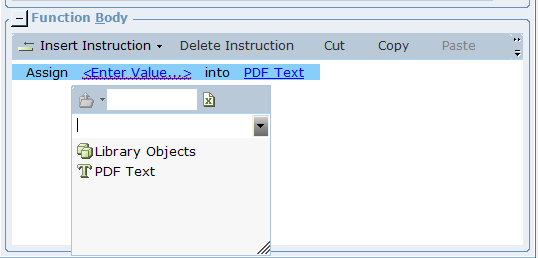
| 8. | Go to Library Objects and select AcrobatReader Support: |
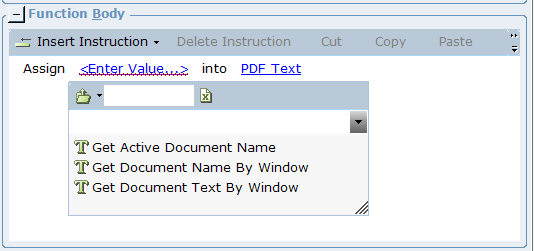
| 9. | From the drop-down list, select the Get Document Text By Window function: |

| 10. | Click the <Select Window…> link: |

| 11. | Go to Library Objects and select AcrobatReader Support: |

| 12. | Select the Get Active AcrobatReader window function. |
This function gets the number of an active Acrobat Reader window with the PDF document in the functions parameter:
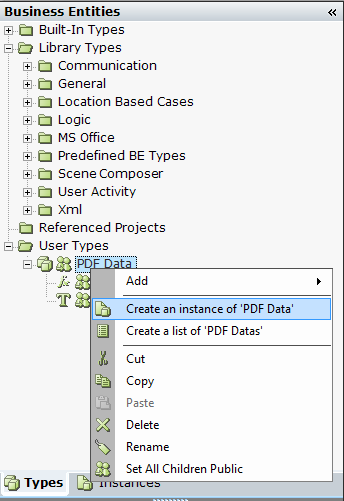
| 13. | Right-click the PDF Data business entity type in the Business Entities tree, and select the Create an instance of ‘PDF Data’ option: |
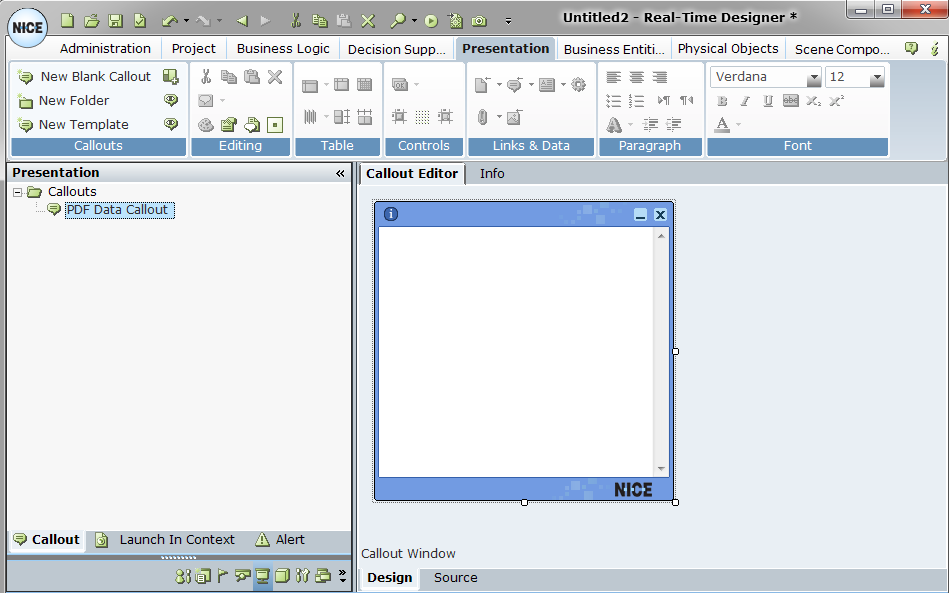
| 14. | Go to the Presentation module and create a New Blank Callout. Give the new callout a new, for example, PDF Data Callout: |
| 15. | On the ribbon, click the Insert a function button and select the Function Invocation option: button and select the Function Invocation option: |
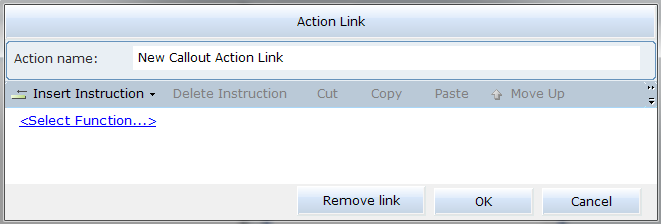
| 16. | Click the <Select Function…> link: |
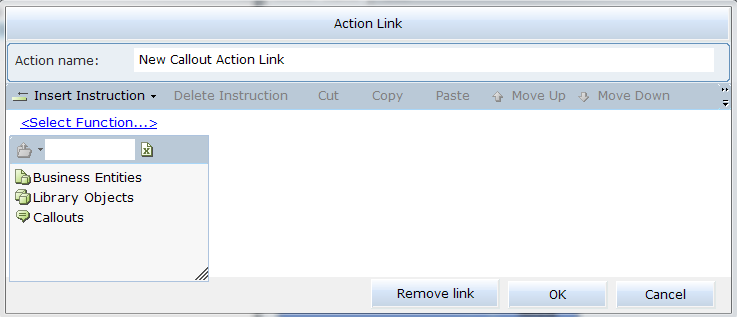
| 17. | Navigate to Business Entities > PDF Data > Get PDF Text In the Action Name field, give the action a name, for example, Get PDF Text and then click OK: |
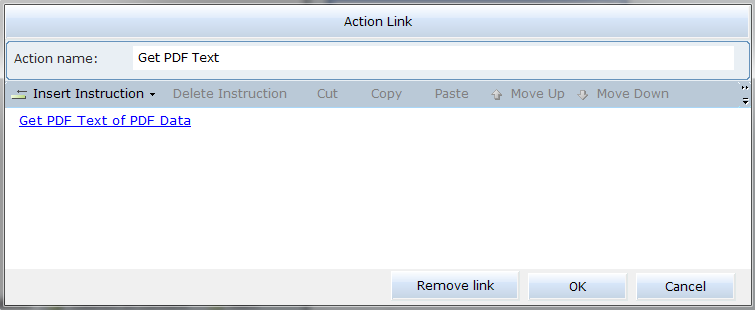
The action link is added to the callout:
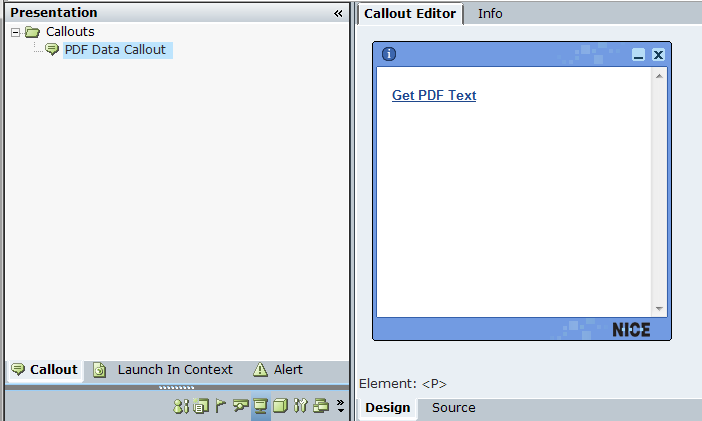
| 18. | On the ribbon, click the Insert Dynamic Text button, and under the Business Entities node, select the PDF Text property: button, and under the Business Entities node, select the PDF Text property: |
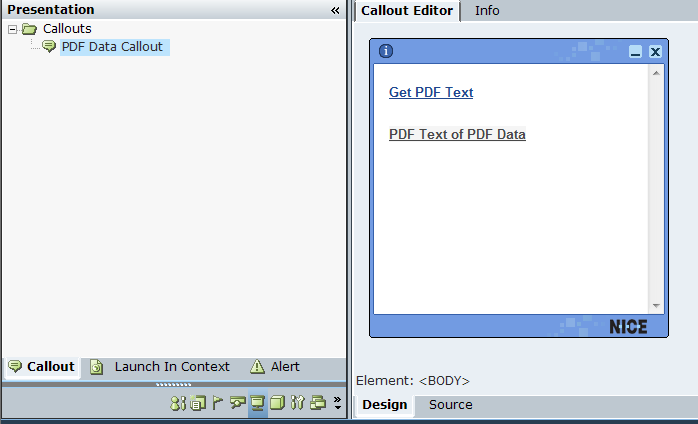
| 19. | Go to the Real-Time Designer Project tab and add the PDF Data Callout into the Quick window: |
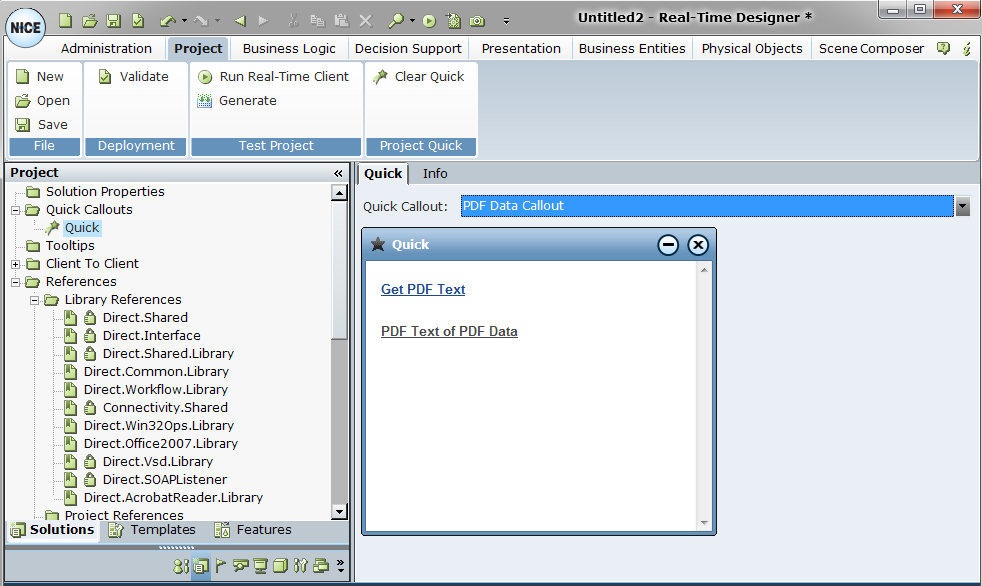
| 20. | Save the project. Now you are ready to run it and get the data from any PDF form. |
To get PDF form data:
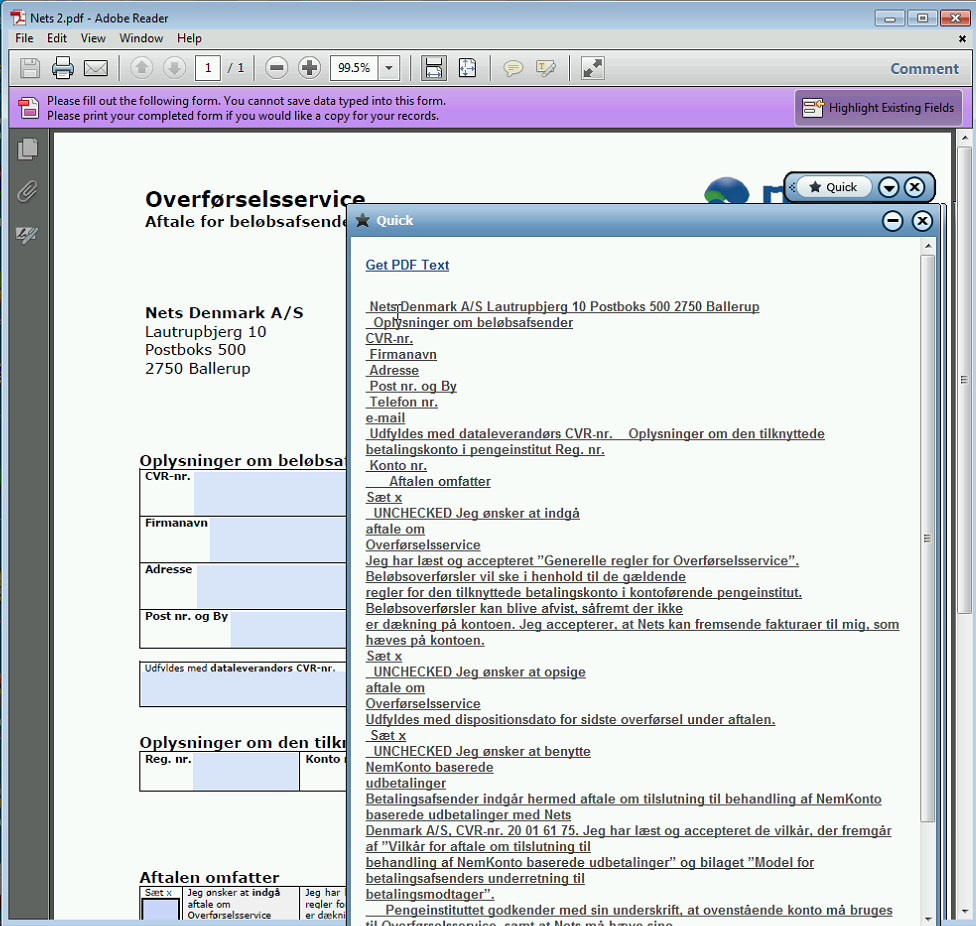
| 1. | Open a PDF form document in the Acrobat Reader window: |
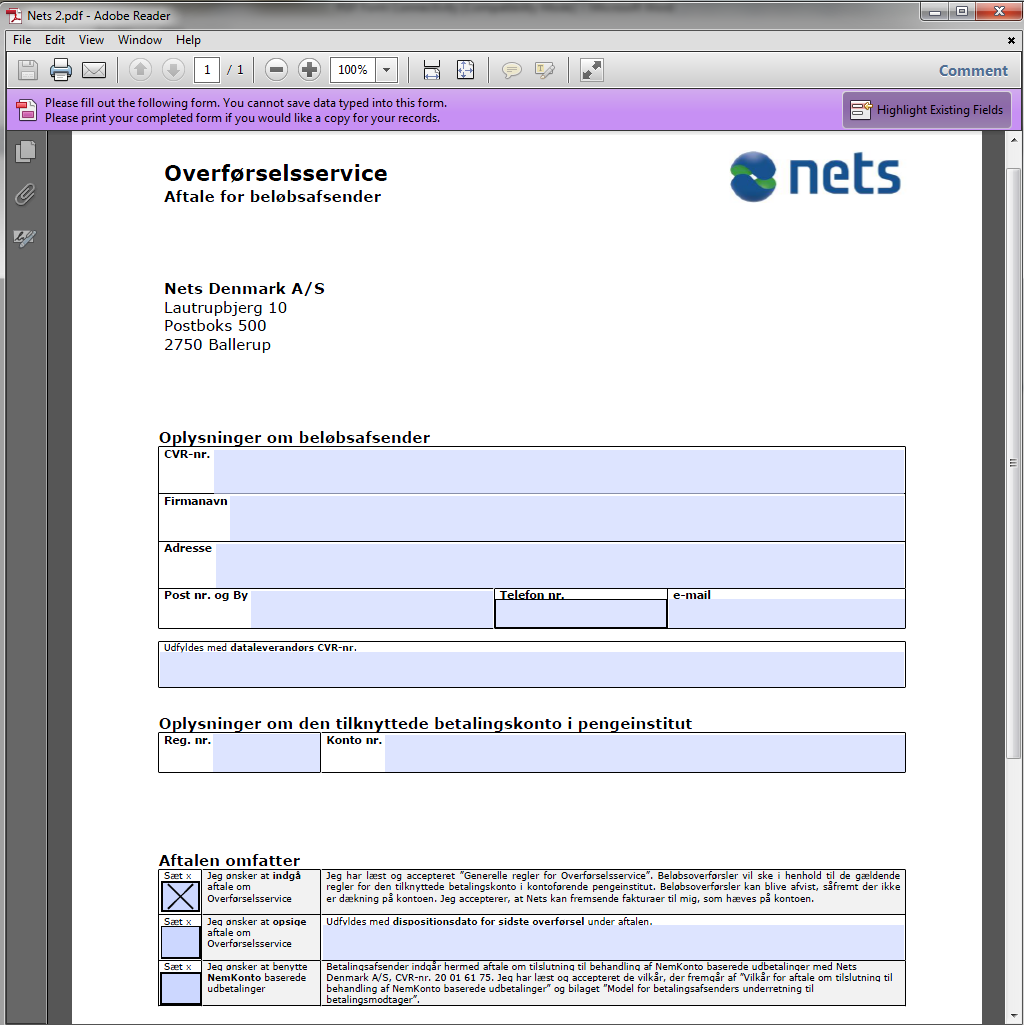
| 2. | On the Quick Access Toolbar, click the Test Project button and select the Run Real-Time Client option to run the project locally on the client’s machine. |
The Real-Time Client appears on the desktop:

| 3. | Click the Quick button in the Real-Time Client to display the callout: |
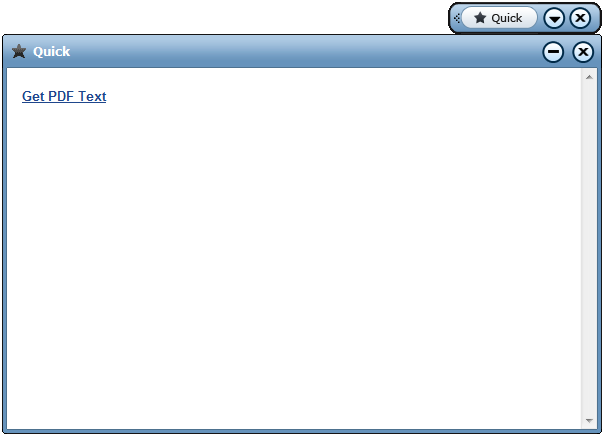
| 4. | Click the Get PDF Text link in the callout to get the data of the active PDF document: |